.png?width=500&height=100&name=500x100px%20Hubspot%20(3).png)
A zone is a defined area on the map. Active elements, e.g. trackers or gateways, that enter this area are assigned to the zone. Upon leaving the area, they are no longer assigned to the zone.
For example, own warehouses or loading stations as well as those of service providers are defined as zones.
Create Zones
- Open the BOX ID software.
- Select Zones from the menu.
- Click the plus symbol. This will open the entry mask Create Zone.
- Enter the location or address in the search bar and zoom into the required area.
- Draw a zone by clicking on the pencil icon at the left bottom corner of the map and moving the blue dot at the tip of your cursor to a corner of your zone.
- By clicking, you mark the first corner of the zone, followed by clicks on all other corners. At the end you click again on the first corner, closing the form – your zone.
- By clicking into the highlighted zone, you can active the zone’s edge and correct it. To deactivate this editing, you click on any point on the map outside the zone.
- A zone can be a rectangle, square or polygon.
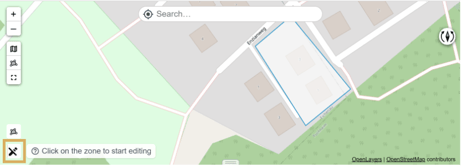
- In the Name field, enter an unambiguous name for the zone.
- Optionally, you can assign a colour to the zone and activate and define additional attributes in the field Properties.
- Click Create to save the zone.
Edit Zones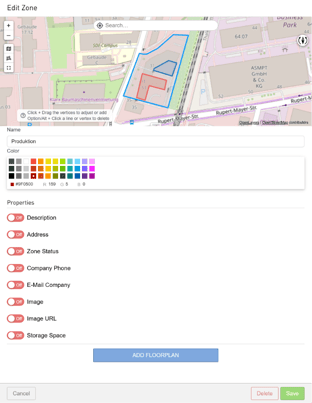
- Select Zones from the menu.
- By clicking a zone of your choice, you open the detail view of this zone.
- Click Edit to open the editing mode.
- You can change the name, colour and properties of the zone.
- To exit, you have the following options.
- Click Cancel to end editing without saving.
- Use Save to keep the changes.
- Click Delete to remove the zone from the system.
Create Subzones
- Select Zones from the menu.
- Select your desired zone in the zone table.
- Click the plus symbol. This will open Create Zone.
- Draw a new zone within the parent zone.
All further steps are identical to creating Zones.