.png?width=500&height=100&name=500x100px%20Hubspot%20(3).png)
The Control Tower is a dashboard that provides an overview of various data and can be configured by an administrator. There is only one Control Tower for all users.
The default view contains six empty tiles that are filled with information after assets have been created.
The following types of tiles are available:
- Info: Provides a view of assets and stocks.
- Diagram: Shows assets proportionately inside and outside zones.
- Map: Shows the current position of assets.
- Table: Reports on the current status of assets.
Extending the Control Tower
- Open the BOX ID software.
- Select Control Tower from the menu.
- Click Edit.
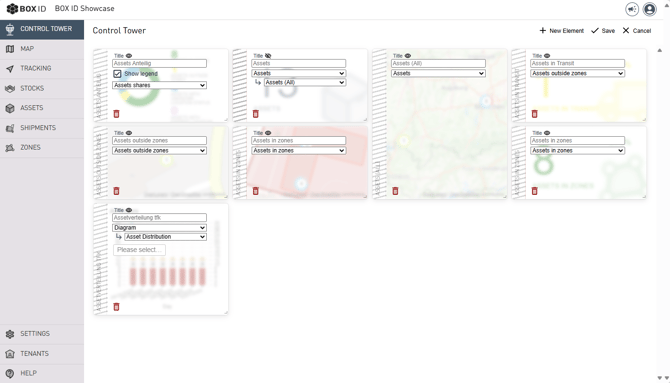
- Click + New Element.
- Select an element and drag and drop it to the desired position.
- The following additional settings are required.
- Title: Optionally, you can give a title to the element.
- Select the value to be displayed from the drop-down list (mandatory field).
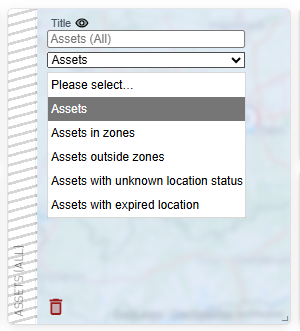
- To exit, you have the following options.
- Click X Cancel to end editing without saving.
- Use ✓ Save to keep the changes.
Change the Control Tower
- Open the BOX ID software.
- Select Control Tower from the menu.
- Click Edit.
- You can make the following changes to existing elements.
- Remove the element by clicking the trash icon.
- Show or hide the title using the eye symbol.
- Change the display value by selecting from the drop-down list.
- To exit, you have the following options.
- Click X Cancel to end editing without saving.
- Use ✓ Save to keep the changes.