.png?width=500&height=100&name=500x100px%20Hubspot%20(3).png)
Monitor Stocks
- Open the BOX ID software.
- Select Stocks from the menu
- Click on the stock you want to monitor.
- To be notified about a stock even if you are not logged into the system, click + Create Monitoring in the area Monitorings.
- Select one of the following criteria for monitoring from Condition.
- Select the Severity (Warning, Critical) and add a suitable message to the monitoring in the field Description.
NOTE: You will find this information again if you go to the overview of a stock and click on Alerts in the Details area. - Click Add Action to select how notifications are forwarded. You can choose from the following options:
- E-mail
NOTE: When choosing e-mails, at least the field Recipients must be filled in, although it is recommended to also enter the fields Subject and Content. - Webhook
- Several e-mails and webhooks can be defined, also in combination.
- E-mail
- To start the monitoring, click Save.
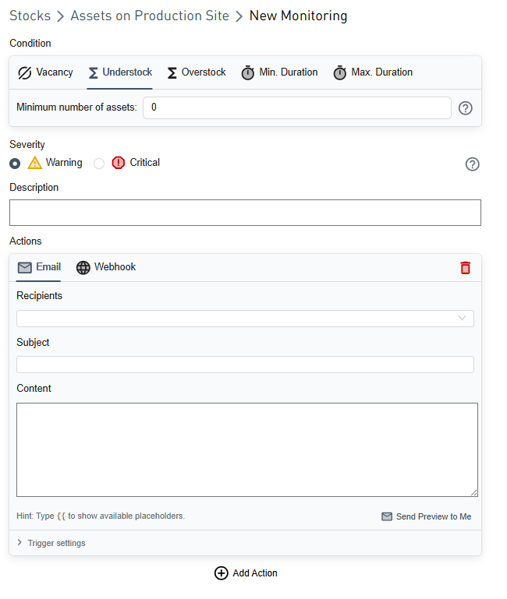
Monitoring Conditions
| Vacancy | A message is sent as soon as an asset is in the stock. |
| Understock | A message is sent as soon as the number of assets in the stock falls below the defined minimum number. |
| Overstock | A message is sent as soon as the defined maximum number of assets in the stock is exceeded. |
| Minimum Duration | A message is sent as soon as an asset leaves the stock before its minimum duration time has expired. The minimum duration can be specified in minutes, hours or days. |
| Maximum Duration | A message is sent as soon as an asset is still in stock when its maximum duration time has expired. The maximum duration can be specified in minutes, hours or days. |
Change Stocks - Monitoring
- To edit a monitoring task, hover over the item and click on the cogwheel icon that appears on the right side.
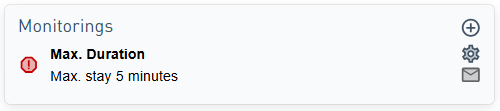
- You can make the following changes to the existing monitoring task:
- Modify condition
- Modify severity and description
- Modify existing actions as well as add or delete actions
- To exit, you have the following options.
- Click Cancel to end editing without saving.
- Delete removes the monitoring and ends the editing mode.
- Use Save to keep the changes.