.png?width=500&height=100&name=500x100px%20Hubspot%20(3).png)
Asset types describe different types of load carriers or racks.
Examples:
- A-Frame
- L-Frame
- Roll container
Create asset types before you create assets via the Scanpage.
Create Asset Types
- Open the BOX ID software.
- Select Settings from the menu.
- Click the tile Asset Types, to open the asset type list.
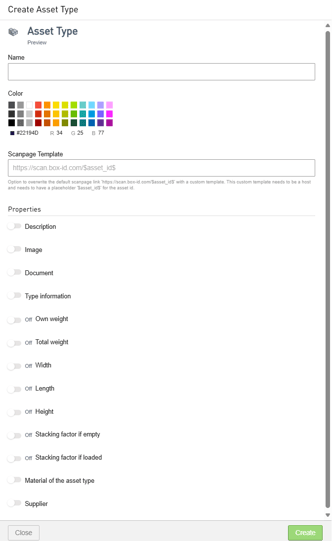
- Click the plus symbol. This will open the entry mask Create Asset Type.
- In the Name field, enter the name of the asset type and select a colour for the asset type. When choosing a name for the asset type, make sure that it enables unambiguous identification of the type.
- Under Properties, you can activate and define additional attributes. Example:
- Move the slider for Image to On.
- Click on Upload Image.
- Select the required image file. Alternatively, you can drag the desired image file into Upload Image (drag and drop).
- Click on Create to save the asset type.
Edit Asset Types
- Select Settings from menu and click on the tile Asset Types to open the list of asset types.
- By clicking an asset type of your choice, you open the detailed view of this asset type.
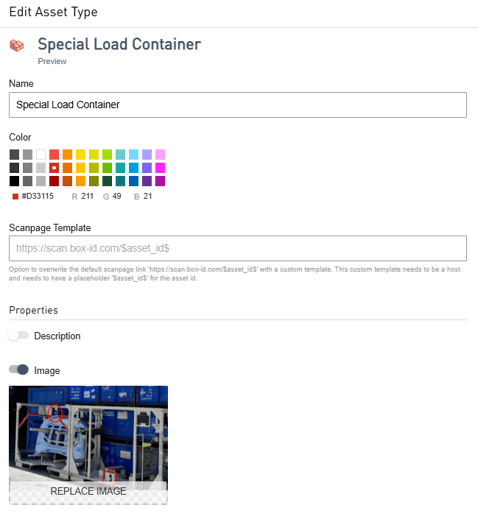
- Click Edit to open the editing view.
- You can change the following values.
- asset type name
- asset type colour
- Scanpage template
- asset type properties
- To exit, you have the following options.
- Click Cancel to end editing without saving.
- Use Save to keep the changes.
- Click Delete to remove the asset type from the asset list and the Scanpage.