.png?width=500&height=100&name=500x100px%20Hubspot%20(3).png)
Labels are used to mark assets with certain properties or states. They are used to define stocks. Further information can be found in the stock guide.
You can create any number of labels. The recommendation is to work with as many as necessary and as few as possible.
You can manually add or remove one or more labels to or from the respective assets.
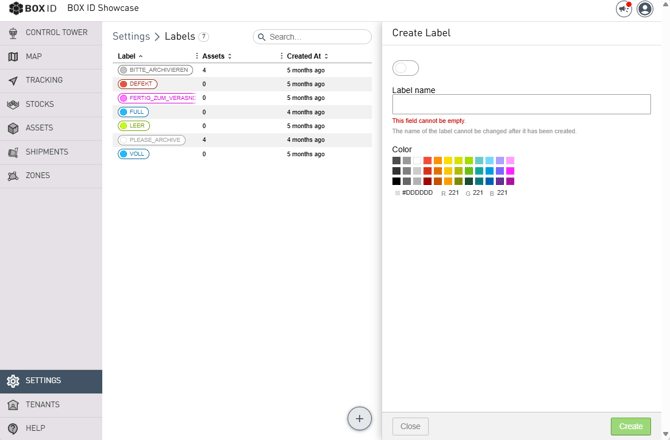
Create Labels
- Open the BOX ID software.
- Select Settings from the menu.
- Click the tile Labels.
- Click the plus symbol. This will open the entry mask Create Label.
- In the field Label name, enter a distinct name for your label and then select a colour for the label.
- Click Create to save the label.
The name of the label can no longer be changed once it has been created.
Edit Labels
- Select Settings from the menu and click the tile Labels to open the list of labels.
- By clicking a label of your choice, you open the detailed view of this label.
- Click Edit to open the editing view. You can only change the colour of the label.
- To exit, you have the following options.
- Click Cancel to end editing without saving.
- Use Save to keep the changes.
- Click Delete to remove the label from the system.