.png?width=500&height=100&name=500x100px%20Hubspot%20(3).png)
On delivery, the software contains a customized user with administrator rights. This user creates all other users, either as administrator or user. The administrator largely has write access, while the user only has read access to the software.
The user rights of a person who has already been registered can be changed retrospectively.
People using the Scanpage for scanning tags must be platform user if this requirement is defined in the Scanpage Entries.
Create a User
- Open the BOX ID software.
- Select Settings from the menu.
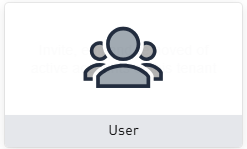
- Click the tile User.
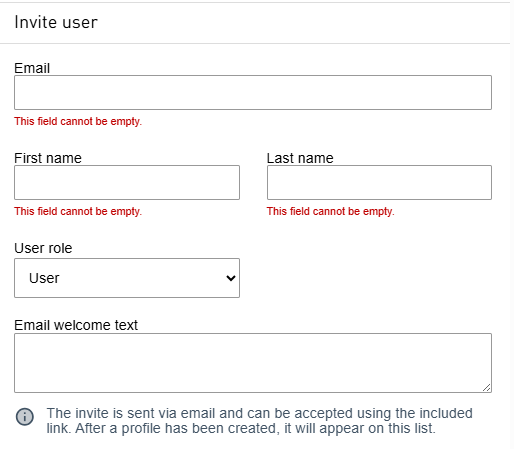
- Click on the person icon with the plus sign. This will open the entry mask Invite user.
- Enter the data of the user to be created in the pop-up window (e-mail, first name and surname).
- Chose the applicable role from the drop-down menu User role. The selection is defaulted to user.
- Optionally, you can enter a welcome text.
- By clicking Send invite, the new user will receive an invitation to the e-mail address previously entered. The user will be created in the system when they log in for the first time.
Edit a User
- Select Settings from the menu and click on the tile User to open the list of users.
- By clicking a user, you open the detailed view of the user information.
- Click Edit to open the editing view.
- You can change the first name, surname and user role.
- To exit, you have the following options.
- Click Cancel to end editing without saving.
- Use Save to keep the changes.
- Click Delete to remove the user from the system.