.png?width=500&height=100&name=500x100px%20Hubspot%20(3).png)
Edit Stock - Filter
- Open the BOX ID software.
- Select Stocks from the menu.
- Select the stock you would like to edit.
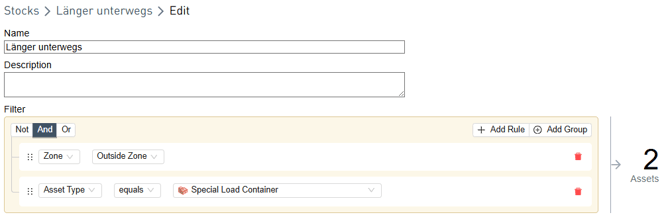
- To modify the filter, navigate to the top right-hand edge and click on Edit.
NOTE: Alternatively, you can start the editing mode by hovering over the Filter area and clicking the appearing cogwheel icon.
- You can make the following changes to an existing filter.
- Name
- Description
- Change filter rule
- Add filter rule (click the plus symbol)
- Delete filter rule or rule group (click the trash icon)
- To exit, you have the following options.
- Click Cancel to end editing without saving.
- Delete removes the stock.
- Use Save to keep the changes.