.png?width=500&height=100&name=500x100px%20Hubspot%20(3).png)
Choose Workflow
Tap one of these workflows:
- Pickup: Use to pick up an asset.
- Delivery: Use when delivering an asset.
- Position Update: Use to update the position of an asset.
- Damage: Use to report a damaged asset.
Scan Required Codes
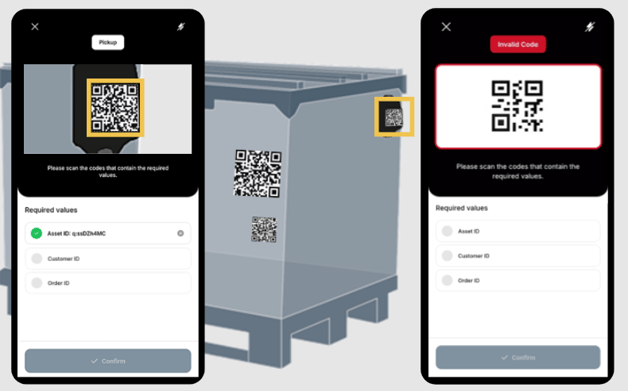
Scanning starts automatically after selecting a workflow. - ✅indicates successfully captured values.
- Invalid codes are indicated by a warning.
Complete Scan(s)
- Several scans might be needed to capture all required values.
- The ✖️ icon can be used to remove a value.
- Tap Confirm to complete the scan.
Scan Details
The completed workflow will be listed in Recent Scans.
This information is relevant when opening a ticket with support.
In Recent Scans, the status of each scan is shown.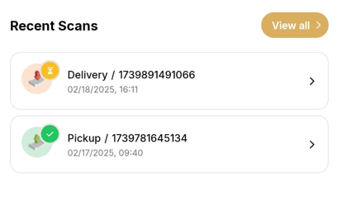
- ✅ Successfully uploaded.
- ⏳In queue for upload.
- Upload to server failed.